Your Activity Journal: Feeds
Feeds act as a hub, seamlessly integrating various elements such as swings, practice guides, assessments, and much more. By centralizing all these components, you gain a comprehensive overview of your student's golfing evolution over time.
The "Sessions" tab is no longer available; instead, find your student's session by going into their profile.
- Click on the "Students" tab on the bottom of your screen
- Find the Student whose session you'd like to see
- Scroll through their Feed to find the session OR filter their feed
- You can click the funnel-looking "Filter" icon on the top right corner and choose to show "Swing," "Message," or "Media" — or, you can choose a combination of the option.
- Tap on the cube looking icon in the middle of the video session to return to 3D analysis mode
Coach's Perspective: What can I do?
Create Content📝: Create posts in the form of text, photos, and videos on your Student's Feed immediately following your lesson or later on
- Record Swings and Post Updates: Use the floating create button at the bottom of the screen to log swings in 3D or posts of any kind for Students
_iphone13promaxsilver_portrait-png.png?width=226&height=426&name=click%20the%20plus%20sign%20to%20either%20create%20a%20post%20or%20a%203d%20swing%20session%20(12)_iphone13promaxsilver_portrait-png.png)
- Create content for one Student's feed or blast it to everyone! You choose who or what group you want to communicate with.
- Coming soon⚠️ Downloading videos and sharing posts⚠️
Feedback for Students🗣️: Comment and like a Student's post so they can get direct feedback
-
Engage with students through comments. Clarify with text or media to expedite the learning process.
-
- Coming soon⚠️Reacting to posts⚠️
Assignments📚: Create take-home materials for students
- Student's Goals and assignment Practice Guides are all displayed in one, centralized location
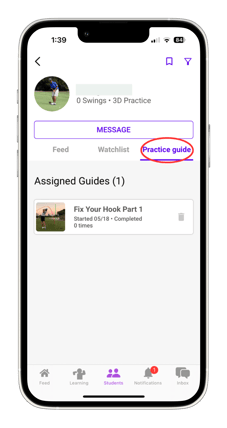
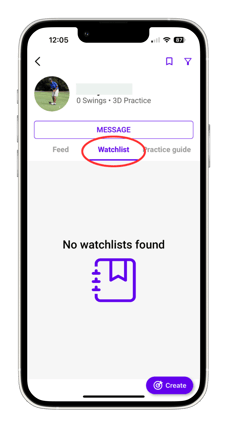
- Create drills, goals, notes, recordings of lessons so students can review at home
_iphone13promaxsilver_portrait-png.png?width=226&height=427&name=click%20the%20plus%20sign%20to%20either%20create%20a%20post%20or%20a%203d%20swing%20session%20(5)_iphone13promaxsilver_portrait-png.png)
Organization🎯 :All of the Student's posts are saved and centralized in one area
-
Filter content: Use the FILTER ICON
 to choose what you want to see in a sea of activity
 -
Save posts: Click on the three stacked dots on the top right hand of a post
- Click the SAVE ICON
 on a student's page to visit a their saved post
- Click the SAVE ICON
Tagging and naming is no longer supported. Feeds is a start to our solution to make communication more efficient, technically simple, and visually pleasing when organizing sessions
**Stay Updated:**Be on top of your Students and stay updated with Sportbox!
-
- Notifications Page: Almost like a to-do list, the Notifications Page gives you a live log on what's happening with your students and includes promotions and updates from us
Review⏪: Look back on swings, analysis, and content in the future
Source: Sportsbox Help Center